

How to Disable, Exclude & Phase In axe Rules in Playwright
How to gradually phase in Playwright accessibility testing on existing websites with known violations, using axe rules, exclusions, and real results.
Turn on a full axe scan against an existing product and you'll usually get a wall of violations on day one. File them all as bugs and you bury the backlog, frustrate developers, and the accessibility work stalls. The pragmatic alternative is to agree on a minimum set of rules, automate those, record the issues you already know about, and phase in stricter checks as the team fixes things.
I wrote about this approach years ago in Implementing a Minimum Accessibility Test Plan using Nightwatch. This is the Playwright version, using @axe-core/playwright and AxeBuilder, and instead of a made-up example I used this site. Every number and failure below came from scanning davidmello.com.
None of this replaces manual testing. Automated scans miss most WCAG failures, which I covered in Playwright Accessibility Testing: What axe and Lighthouse Miss. But they're the cheapest way to stop fixed issues from coming back, as long as the results don't bury the team.
Pick a Starting Point for an Existing Product
There are two reasonable places to start, depending on how much accessibility debt you have:
- The site has extremely poor accessibility: start with a short, agreed list of rules using
withRules(), like the minimum test plan from my Nightwatch article (page titles, headings, image alt text, color contrast). A full scan would only produce noise. A short list gives the team somewhere to start and a clear definition of done. - The site is mostly in good shape: scan against a standard like WCAG 2.1 AA with
withTags(), exclude the areas you've decided to defer, and record the remaining known issues so only new violations fail the build.
This site falls in the second group, so that's what the rest of the article builds. Both are stages of the same approach: start where the product is, then tighten.
Install and Run @axe-core/playwright
Install the axe integration alongside Playwright:
npm install -D @axe-core/playwright
Once axe-core is installed import AxeBuilder at the top of your test spec as shown in the code example below. Now the simplest scan runs every rule axe has against the page:
import { test, expect } from '@playwright/test';
import AxeBuilder from '@axe-core/playwright';

test('home page has no accessibility violations', async ({ page }) => {
  await page.goto('/');
  const results = await new AxeBuilder({ page }).analyze();
  expect(results.violations).toEqual([]);
});
analyze() returns every violation it finds rather than stopping at the first one, so a failing test shows you the full picture.
What a Default Scan Found on This Site
I ran that default scan, with axe-core 4.13, against my article on running parallel and serial tests in Playwright, in both light and dark mode:
| Rule | Light mode | Dark mode |
|---|---|---|
| color-contrast (serious) | 435 elements | 0 |
| link-in-text-block (serious) | 9 | 9 |
| empty-table-header (minor) | 1 | 1 |
All 435 contrast failures were inside code blocks. In light mode, the syntax highlighting colors fail against the code block background: comments at 2.47:1, strings at 2.18:1, and one light gray at 1.51:1, against a required 4.5:1. Dark mode had none.
One problem, a code block theme, produced 435 of the 445 violations, and it buried two smaller issues that mattered just as much. I didn't want to fix the code block theme that day, so I needed to set it aside without losing everything else. Agile development teams would have this same issue; you can't fix all incoming issues immediately, especially mid-sprint, so you need to be able to silence or disable known failures until they can be prioritized, similar to my article how to handle failing tests caused by known bugs, but here we leverage axe features to do so.
Disable an axe Rule with disableRules()
The bluntest tool is turning the rule off:
const results = await new AxeBuilder({ page })
  .disableRules(['color-contrast'])
  .analyze();
On this page the 435 contrast violations disappear, leaving only the link and table issues. The catch is that contrast checking is now off everywhere, not just in code blocks. A low-contrast button added next month would pass without anyone noticing.
Use disableRules() when a rule genuinely doesn't apply to your product, or as a short-lived step while you work through a backlog. For a known issue in one area of the page, there's a better option.
Exclude or Include Elements with exclude() and include()
exclude() takes a CSS selector and skips those elements and everything inside them:
const results = await new AxeBuilder({ page })
  .exclude('pre')
  .analyze();
Same result on this page: the 435 code block violations are gone. The difference is that contrast is still checked everywhere else, so a new low-contrast button would fail the test.
The tradeoff is that exclude() skips every rule inside the excluded elements, not just contrast. That's acceptable for code blocks, but keep exclusions as narrow as you can.
exclude() is also the right tool for content you can't fix. When I scanned pages with an embedded YouTube video, axe reported aria-allowed-attr, aria-prohibited-attr, and button-name violations, all from inside YouTube's own player iframe. Excluding iframe keeps third-party embeds from failing your build over markup you don't control.
include() works the other way: it limits the scan to part of the page. That's useful for holding new work to the full rule set before the rest of the page is ready. When I added a pros and cons box to my review articles, I could scan just that component:
const results = await new AxeBuilder({ page })
  .include('[data-testid="review-pros-cons"]')
  .analyze();
You can also combine the two, for example .include('main').exclude('pre') to scan the page content but skip its code blocks.
Finding the Root Cause
Excluding the code blocks bought time, and it also prompted me to find out why light mode failed when I'd configured a high-contrast theme. The code blocks were being rendered with three themes, including material-theme-lighter, which my UI library adds as the default light theme. My config only set the default and dark themes, so the library's light theme won in light mode. The fix is one line of config. When I apply it, the pre exclusion comes out of the test.
Run Only Specific Rules with withRules() and withTags()
To scan for a short, agreed list of rules, use withRules():
const results = await new AxeBuilder({ page })
  .withRules(['document-title', 'page-has-heading-one', 'image-alt', 'color-contrast'])
  .analyze();
This is the Playwright equivalent of runOnly in my Nightwatch test plan, and it's the starting point I'd use for a site with very poor accessibility. The full list of rule IDs is in axe-core's rule descriptions.
To scan against a standard instead, use withTags(). axe tags each rule with the WCAG criteria it covers:
const results = await new AxeBuilder({ page })
  .withTags(['wcag2a', 'wcag2aa', 'wcag21a', 'wcag21aa'])
  .analyze();
WCAG Tags Skip axe Best-Practice Rules
Note WCAG tags don't include axe's best-practice rules. For example, empty-table-header, landmark-unique, landmark-no-duplicate-main, page-has-heading-one, heading-order, and region are all tagged best-practice, not WCAG. A WCAG-only scan would have missed several of the issues I fixed on this site (more on those below). Once those were fixed, I added the best-practice tag so they can't come back.
Scaling: Share an AxeBuilder Configuration with a Playwright Fixture
Repeating the same builder calls in every test makes the rule set hard to change and scale. Playwright's recommended pattern is a fixture that returns a preconfigured builder, so the agreed rules live in one place:
import { test as base, expect } from '@playwright/test';
import AxeBuilder from '@axe-core/playwright';

const RULE_TAGS = ['wcag2a', 'wcag2aa', 'wcag21a', 'wcag21aa', 'best-practice'];

const test = base.extend<{ makeAxeBuilder: () => AxeBuilder }>({
  makeAxeBuilder: async ({ page }, use) => {
    await use(() =>
      new AxeBuilder({ page })
        .withTags(RULE_TAGS)
        .exclude('pre')     // known issue: code block theme contrast (deferred)
        .exclude('iframe'), // third-party embeds
    );
  },
});
Phasing in a new check is now a one-line change to RULE_TAGS or the exclusions, and every test picks it up.
Handle Known axe Violations Without Failing the Build
After the exclusions, two contrast issues were left that I'd decided to defer: the dates on my About page timeline, and some green "Pass" badges on one of my tool pages. Excluding those elements would turn off every rule for them. I wanted something narrower: tolerate that rule on those elements, and check everything else as normal.
So the test keeps an explicit list of known issues, each with a reason:
const KNOWN_ISSUES = [
  {
    path: '/about',
    rule: 'color-contrast',
    selector: '[data-slot="date"]',
    reason: 'Timeline dates use a dimmed text color (2.63:1)',
  },
  {
    path: '/tools/color-contrast-checker',
    rule: 'color-contrast',
    selector: '.bg-success',
    reason: 'Solid green "Pass" badges',
    colorScheme: 'light',
  },
];
After analyze(), a small helper removes violations that match a known issue's page, rule, and selector, and the test asserts that nothing else is left:
const violations = await withoutKnownIssues(page, path, colorScheme, results.violations);
expect(
  violations.map((v) => ({ rule: v.id, impact: v.impact, targets: v.nodes.map((n) => n.target.join(' ')) })),
).toEqual([]);
Mapping the violations to rule, impact, and targets keeps the failure message readable. To prove the guard works, I removed the About page entry and ran the test:
- Expected  -  1
+ Received  + 13

- Array []
+ Array [
+   Object {
+     "impact": "serious",
+     "rule": "color-contrast",
+     "targets": Array [
+       ".gap-3.group[data-slot=\"item\"]:nth-child(1) > … > .text-dimmed.text-xs\\/5[data-slot=\"date\"]",
+       … 4 more timeline dates
+     ],
+   },
+ ]
Both the light and dark mode tests failed and named exactly the five timeline dates. When I fix them, I delete the entry, and the test then guards against the problem coming back.
This list is also where the workflow from my Nightwatch article fits in. Issues that existed before the team agreed on a rule set are known issues and get planned as feature work.
A violation that appears after the agreement is a regression and should be treated as a defect and fail the build
Playwright's documentation suggests a different approach: snapshotting a fingerprint of known violations with toMatchSnapshot(). That works, but Playwright adds the operating system to text snapshot file names, so a snapshot generated on my Windows machine wouldn't match in Linux CI without extra setup. An explicit list with reasons is also easier to review in a pull request, at least in my case.
Run axe in Light and Dark Mode with colorScheme
The code block failures only existed in light mode, and the badge issue was light-only too. A scan in one color scheme would have missed half the picture. This underscores the importance of test automation to cover workflows and use cases not normally exercised. I didn't catch this manually because I normally use the site in dark mode. Further, contrast violations are not always very obvious without accessibility tooling to check. When designing your site or checking fixes you can use my WCAG color contrast checker to verify color-contrast rule conformance.
This example leverages Playwright's ability to use a for loop to parameterize in test variations to cut down on test code duplication to run the checks in light and dark mode with the same test body:
for (const colorScheme of ['light', 'dark'] as const) {
  test.describe(`Accessibility (${colorScheme} mode)`, () => {
    test.use({ colorScheme });
    // ...one test per page
  });
}
Attach axe Results to the Playwright HTML Report
The assertion shows a summary, but when you're fixing something you want everything axe returned. Attach the full results to the test so they appear in Playwright's HTML report:
test('home has no new accessibility violations', async ({ page, makeAxeBuilder }, testInfo) => {
  await page.goto('/');
  const results = await makeAxeBuilder().analyze();

  await testInfo.attach('axe-results-home', {
    body: JSON.stringify(results.violations, null, 2),
    contentType: 'application/json',
  });

  // ...known issues filter and assertion
});
To show what a failure looks like, this report is from the guard check earlier, where I deliberately removed the About page's timeline dates from the known issues list. With that entry gone, both About tests fail, one per color scheme, and the other eight pass. With the entry restored, all ten pass:
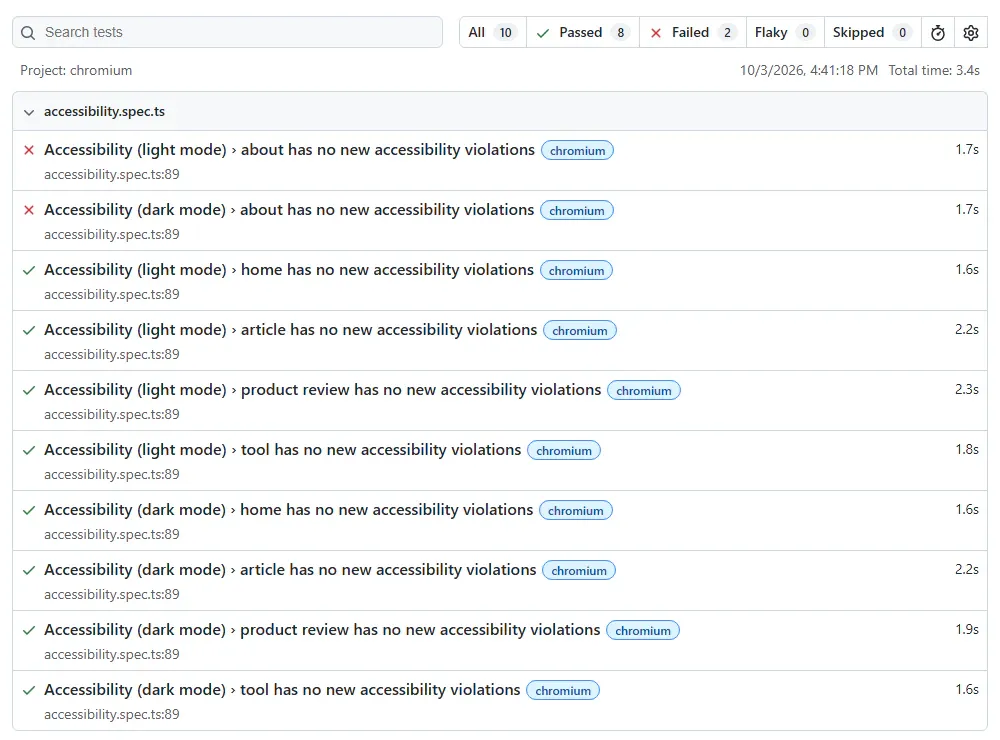
Open a failing test and the attachment is under Attachments. Each violation includes the rule, its impact, the WCAG criteria it maps to, a link to Deque's explanation, and for contrast failures, the exact colors and ratio. Here's the first of the five timeline dates from that attachment:
[
  {
    "id": "color-contrast",
    "impact": "serious",
    "tags": [
      "cat.color",
      "wcag2aa",
      "wcag143",
      "TTv5",
      "TT13.c",
      "EN-301-549",
      "EN-9.1.4.3",
      "ACT",
      "RGAAv4",
      "RGAA-3.2.1"
    ],
    "description": "Ensure the contrast between foreground and background colors meets WCAG 2 AA minimum contrast ratio thresholds",
    "help": "Elements must meet minimum color contrast ratio thresholds",
    "helpUrl": "https://dequeuniversity.com/rules/axe/4.13/color-contrast?application=playwright",
    "nodes": [
      {
        "any": [
          {
            "id": "color-contrast",
            "data": {
              "fgColor": "#90a1b9",
              "bgColor": "#ffffff",
              "contrastRatio": 2.63,
              "fontSize": "9.0pt (12px)",
              "fontWeight": "normal",
              "messageKey": null,
              "expectedContrastRatio": "4.5:1"
            },
            "relatedNodes": [
              {
                "html": "<body>",
                "target": [
                  "body"
                ]
              }
            ],
            "impact": "serious",
            "message": "Element has insufficient color contrast of 2.63 (foreground color: #90a1b9, background color: #ffffff, font size: 9.0pt (12px), font weight: normal). Expected contrast ratio of 4.5:1"
          }
        ],
        "all": [],
        "none": [],
        "impact": "serious",
        "html": "<div data-slot=\"date\" class=\"text-dimmed text-xs/5\"><!--[-->2023 – Present<!--]--></div>",
        "target": [
          ".gap-3.group[data-slot=\"item\"]:nth-child(1) > .mt-1\\.5.pb-6\\.5[data-slot=\"wrapper\"] > .text-dimmed.text-xs\\/5[data-slot=\"date\"]"
        ],
        "failureSummary": "Fix any of the following:\n  Element has insufficient color contrast of 2.63 (foreground color: #90a1b9, background color: #ffffff, font size: 9.0pt (12px), font weight: normal). Expected contrast ratio of 4.5:1"
      }
    ]
  }
]
The failureSummary and data fields are what you hand to whoever fixes it: the element, the colors involved, and the ratio it needs to reach.
Accessibility Issues the Phased In Approach Caught On This Site
Once the code block noise was out of the way it was easy to see the other accessibility issues. Here's what I fixed, in order:
- Links that relied on color alone (
link-in-text-block). My external and affiliate link components used the brand color with no underline, at 2.35:1 against body text, and links distinguished only by color need at least 3:1. Regular markdown links passed because they're rendered in a heavier font weight, which axe accepts as a second cue. I gave the link components the same styling. - Empty table headers (
empty-table-header). Five comparison tables had a blank first header cell. Each got a label like "Spec" or "Feature". - A contrast failure I'd added that same day. A new pros and cons box used green and red headings that failed contrast in light mode. The scan caught it within hours.
- Duplicate landmarks (
landmark-unique). My home and About pages had two navigation landmarks both labeled "Social media links". The hero section's copy now has its own label. - Nested
<main>landmarks. My site layout already provides the page's<main>, but four pages wrapped their content in another one. Changing the inner one to a<div>fixed three best-practice violations per page.
With those accessibility issues fixed, I added best-practice to the rule tags. Two known contrast issues and the code block theme are still on the list, and each will come off as it's fixed.
Conclusion
You don't need a perfect accessibility score before automated checks are useful. Agree on where to start, use disableRules() sparingly, prefer narrow exclude() selectors for known areas, keep a reviewable list of known issues, and let the build fail on anything new. Then tighten the rule set as the team fixes things.
The automated scan is still only part of the job. Pair it with the manual checks from What axe and Lighthouse Miss.